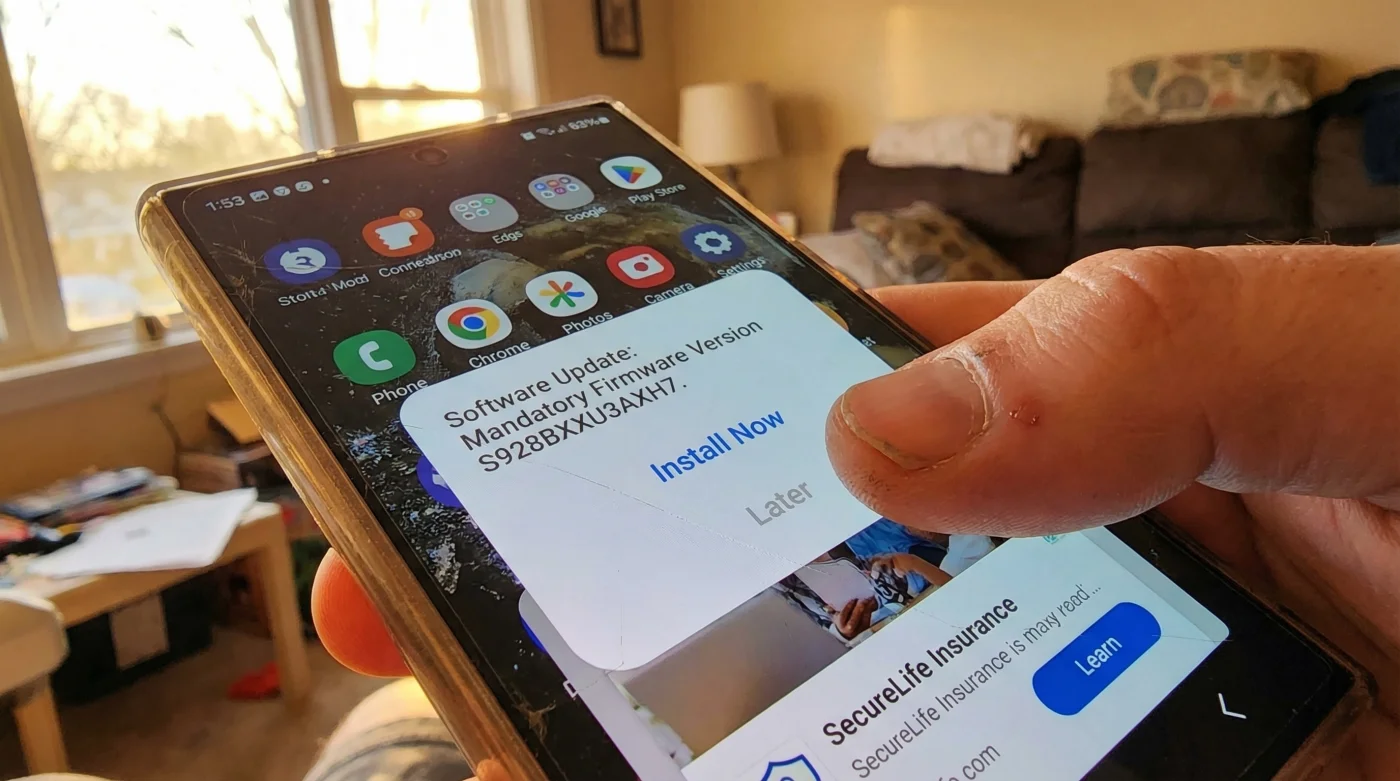
It is the nightmare scenario for any premium hardware enthusiast: waking up to find that the device you spent over $1,000 to acquire has fundamentally changed its allegiance overnight. You unlock your screen expecting the clean, minimalist interface you curated, only to be greeted by a glaring, unmovable banner promoting a third-party service or a streaming app you never installed. This isn’t a virus, and it isn’t user error—it is a deliberate, calculated shift in the firmware architecture of your flagship device. For millions of users across the United States, the sanctity of the personal home screen is being eroded by a mandatory ‘security’ update that Trojan-horses a new revenue stream directly into your pocket.
The frustration is palpable, but the mechanism behind it is even more insidious. By bundling these aesthetic and functional changes with critical security patches, manufacturers are effectively holding device safety hostage to force ad-supported interfaces upon their user base. While many users scramble through standard settings menus looking for a simple toggle to disable the intrusion, the reality is that the control switch has been buried deep within the system partition. Before you can reclaim your digital real estate, you must understand the hidden ‘daemon’ processes running in the background that facilitate this commercial injection.
The Institutional Shift: Hardware vs. Services
For decades, the transaction between a consumer and a smartphone manufacturer was simple: you pay a premium hardware cost, and you own the experience. However, recent financial shifts in the tech sector have pushed giants like Samsung to pivot toward a ‘Services-First’ model. This economic strategy treats the hardware not as the final product, but as a perpetual delivery vehicle for advertising inventory.
Industry analysts have noted that while hardware margins are thinning due to supply chain complexities, ad revenue provides a recurring, high-margin income stream. The integration of the Samsung Visit In system and the Samsung Push Service creates a direct pipeline for advertisers to bypass traditional app stores and appear natively on your device. This is a fundamental violation of the unwritten contract of flagship ownership.
Table 1: The Expectation Gap
| Feature | User Expectation (Flagship) | Post-Update Reality |
|---|---|---|
| Home Screen | 100% User curated icons and widgets. | Injectable ‘Suggested Apps’ and native banner slots. |
| Notification Center | Reserved for communication and system alerts. | Marketing pushes via Game Launcher and Galaxy Store. |
| System Updates | Security patches and performance optimization. | Delivery vectors for new ad-serving middleware. |
Understanding the financial motivation is crucial, but identifying how the software physically executes this command requires a look under the digital hood.
Anatomy of the Ad Injection: The Technical Mechanism
The mandatory updates, often rolling out under the guise of One UI improvements, install specific packages that possess high-level system permissions. Unlike a standard app you download from the Play Store, these system apps (often labeled as bloatware by the community) cannot be uninstalled through standard means. They utilize a background process known as a ‘daemon’ to periodically fetch ad configurations from remote servers.
- Soundbars outsell complex receiver systems for the first time in history
- Roku disables developer mode access effectively banning third-party app sideloading
- Sony unlocks one hundred twenty hertz refresh rates specifically for console gamers
- Netflix quietly reduces streaming bitrates causing visible grain on 4K televisions
- Running standard power cords behind drywall voids your home fire insurance
Table 2: Ad-Serving Impact Data
| Metric | Mechanism | Estimated Impact |
|---|---|---|
| Battery Drain | Continuous background polling by Push Service to check for new ad assets. | 3-5% increase in idle drain daily. |
| Data Consumption | Pre-loading high-res banner images and video assets for instant display. | 50MB – 150MB monthly background usage. |
| Latency | UI thread interruption to inject dynamic content into list views. | Measurable frame drops (jank) during scroll. |
The drain on system resources is a quantifiable nuisance, yet identifying whether your specific device has been compromised by this new policy requires a diagnostic checklist.
Diagnostic: Is Your Firmware Affected?
Not every Samsung device receives the same treatment simultaneously. The rollout is often staggered by region and carrier. However, users on the latest builds of One UI 6.x and those beta-testing One UI 7 have reported a sharp increase in ‘suggested’ content. If you are experiencing random notifications regarding sales, promoted games, or ‘features’ you never enabled, your firmware has likely activated the ad-server protocols.
Use this symptom-cause troubleshooting guide to confirm the infection:
- Symptom: New icons appear in your folders with a small ‘cloud’ symbol or ‘suggested’ tag.
Cause: Galaxy Store ‘app discovery’ feature is active and has permission to modify home screen layouts. - Symptom: Notifications asking you to ‘Finish setting up your device’ weeks after purchase.
Cause: The IronSource or equivalent middleware trying to trick you into installing sponsored app bundles. - Symptom: Full-screen ads appearing when unlocking the device (rare but severe).
Cause: Samsung Global Goals functioning on the lock screen (often enabled during charging).
Once you have confirmed that your device is actively serving advertisements, the only logical step is to systematically revoke the permissions that allow this behavior.
The Mitigation Protocol: Reclaiming Control
While Samsung does not offer a single ‘Master Off’ switch for advertisements, a combination of deep-setting toggles and DNS configurations can neutralize 90% of the intrusion. This requires moving beyond the basic display settings and altering how your phone communicates with ad servers. Experts advise a layered approach: disable the front-end display options first, then sever the data connection to the ad networks.
Table 3: The De-Bloat Quality Guide
| Strategy Level | Action Required (What to Do) | Pitfalls (What to Avoid) |
|---|---|---|
| Level 1: The Settings Purge | Navigate to Settings > Security and Privacy > Customization Service. Toggle OFF ‘Customized ads and direct marketing’. | Do not believe the pop-up warning that says apps will become ‘less useful’. This is a scare tactic. |
| Level 2: The DNS Shield | Go to Connections > More connection settings > Private DNS. Enter a recognized ad-blocking hostname (e.g., dns.adguard.com). | Avoid using unknown DNS providers which may log your traffic. Stick to reputable privacy-focused hosts. |
| Level 3: The ADB Nuke (Advanced) | Use Android Debug Bridge (ADB) via PC to uninstall system packages like com.samsung.android.app.spage. | Warning: Do not uninstall core system frameworks (e.g., One UI Home) or the device will boot-loop. |
Executing these steps sends a clear signal to the firmware that the ad ports are closed, forcing the device to revert to a cleaner, albeit slightly restricted, operation mode.
The Future of Firmware
The battle for the home screen is far from over. As Samsung and other manufacturers continue to search for post-purchase monetization, users must remain vigilant. The ‘mandatory update’ is the most powerful weapon in their arsenal, but informed consumer action—specifically the refusal to grant data permissions and the utilization of private DNS protocols—remains the most effective shield. Your device should serve your needs, not the quarterly revenue targets of a conglomerate.