You have likely invested thousands into a state-of-the-art OLED or Mini-LED television, anticipating the crystal-clear immersion promised by the manufacturer’s demo reel. Yet, when you settle in for a Friday night movie marathon on the highest-tier subscription plan, the experience often falls flat. Instead of inky blacks and razor-sharp edges, you are greeted with distracting visual noise, muddy shadows, and blocky artifacts that make a 4K stream look suspiciously like an upscaled DVD. This is not a defect in your hardware, nor is it necessarily a failure of your internet service provider.
The issue lies deep within the server-side architecture of the world’s most popular streaming giant. Netflix has quietly implemented sophisticated compression algorithms designed to optimize bandwidth usage, often at the expense of pure visual fidelity. While the platform claims to deliver Ultra HD 4K resolution, the bitrate—the actual amount of data delivered per second—has been significantly capped in recent updates. This technical throttling creates a disparity between the pixel count (which remains 4K) and the pixel quality, leading to the grainy textures frustrating audiophiles and cinephiles alike across the United States. Before you adjust your TV settings, you need to understand the mechanics of this hidden data bottleneck.
The Resolution vs. Bitrate Deception
Marketing materials have trained consumers to equate “4K” or “UHD” directly with quality. However, resolution merely defines the grid of pixels (3840 x 2160), while bitrate defines how much color and lighting data fills those pixels. A 4K image starved of data is merely a high-resolution container for a low-resolution picture. Historically, Netflix streams hovered around 15-16 Megabits per second (Mbps) for 4K content. Recently, experts and technical analyses have observed these numbers dropping by as much as 50%, utilizing more aggressive compression like Per-Shot Encoding.
This reduction is practically invisible on a 6-inch smartphone screen or a budget laptop. However, on a 65-inch or larger 4K television, the lack of data manifests as visual artifacts. The following table breaks down the disparity between what consumers believe they are paying for versus what the server actually delivers.
Table 1: Consumer Expectations vs. Technical Reality
| Subscription Tier | Advertised Resolution | Ideal Bitrate (Blu-ray Standard) | Actual Streaming Bitrate (Approx.) |
|---|---|---|---|
| Standard Plan | 1080p (Full HD) | 25 – 40 Mbps | 3 – 5 Mbps |
| Premium Ultra HD | 4K (UHD) + HDR | 80 – 128 Mbps | 8 – 16 Mbps (High Variance) |
| Ad-Supported | 1080p | N/A | 2 – 4 Mbps |
Understanding this gap is crucial because no amount of television calibration can invent data that was never sent to the device in the first place.
Diagnosing the Visual Symptoms
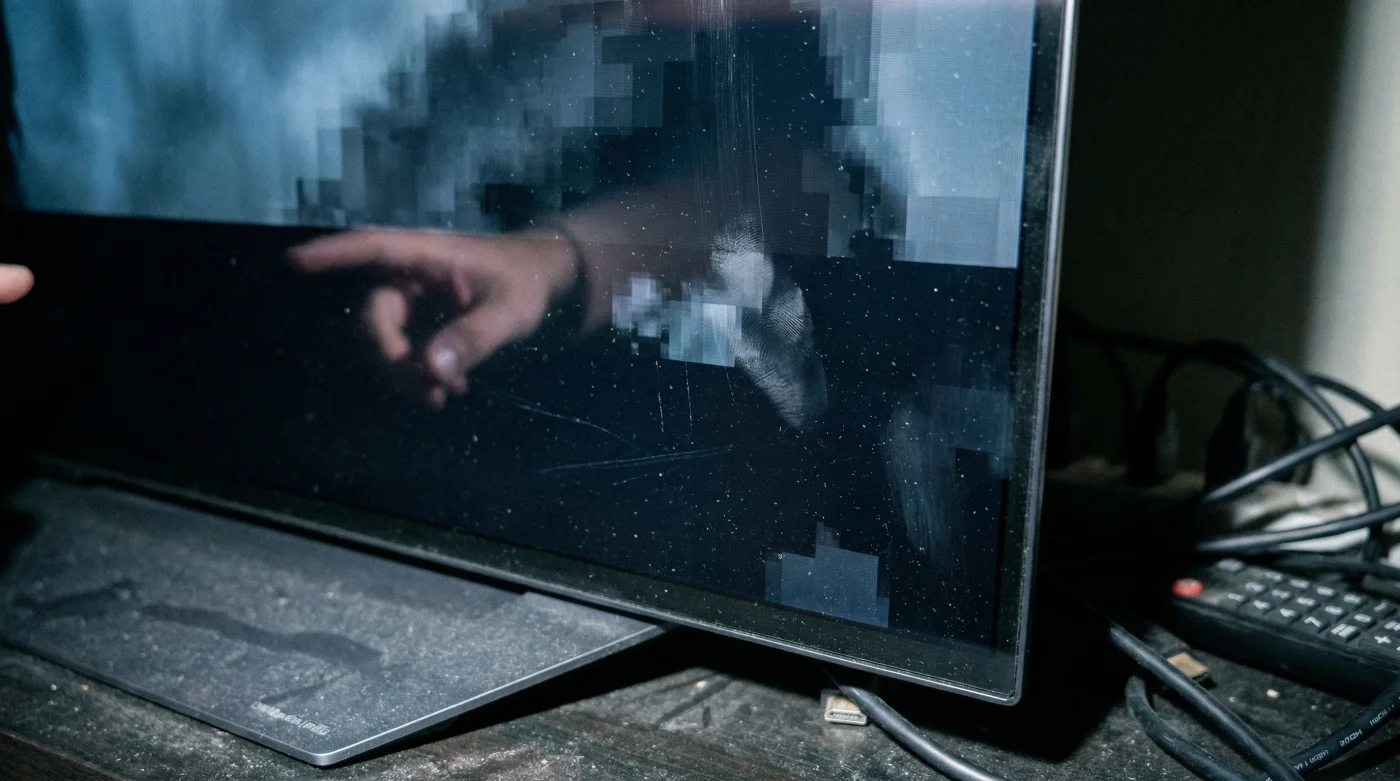
How do you distinguish between an artistic choice—such as intentional film grain added by a director—and a compression artifact caused by a low bitrate? Intentional grain looks uniform and organic. Compression artifacts, technically known as macroblocking or quantization noise, appear digital, blocky, and inconsistent. These issues are most prevalent in complex scenes involving water, fire, or low-light environments where the encoder struggles to allocate enough bits to define the subtle gradients of gray.
- Soundbars outsell complex receiver systems for the first time in history
- Roku disables developer mode access effectively banning third-party app sideloading
- Sony unlocks one hundred twenty hertz refresh rates specifically for console gamers
- Netflix quietly reduces streaming bitrates causing visible grain on 4K televisions
- Running standard power cords behind drywall voids your home fire insurance
- Banding: In scenes with blue skies or sunsets, the color transition should be smooth. If you see distinct, step-like stripes of color, this is color depth compression.
- Macroblocking: In dark scenes, look for square blocks of black or gray dancing in the shadows. This occurs when the codec groups pixels together to save data.
- Mosquito Noise: Faint fuzziness appearing around hard edges, such as text or a character’s silhouette against a bright background.
Symptom = Cause Diagnostic Breakdown
Use this quick reference to troubleshoot your display issues:
- Symptom: Muddy dark scenes (Game of Thrones style).
Cause: Low luma bitrate allocation in HEVC codec. - Symptom: Stuttering during panning shots.
Cause: Frame rate mismatch or TV motion smoothing (Judder), distinct from bitrate. - Symptom: Grain that freezes or moves slower than the action.
Cause: Aggressive temporal compression (P-frames dropping detail).
Once you identify these visual flaws, it becomes necessary to look at the hard numbers driving the image processing.
The Science of Shot-Based Encoding
Netflix employs a technology called Per-Shot Encoding optimization. Traditionally, a stream would maintain a static bitrate. Now, the algorithm analyzes every single shot of a movie. A dialogue scene with two actors standing still requires very little data, so the encoder might drop the bitrate to 1 Mbps, even at 4K resolution. An action scene with explosions requires massive data, spiking the bitrate up. The problem arises when the algorithm is too aggressive, starving complex scenes of the necessary bits to maintain transparency.
This optimization is great for Netflix’s server costs but detrimental to the visual experience on high-end panels that expose every flaw. The table below outlines how different codecs handle this data crunch.
Table 2: Codec Efficiency and Bitrate Thresholds
| Codec Format | Compression Efficiency | Bitrate Needed for “Perceived” 4K | Technical Mechanism |
|---|---|---|---|
| H.264 (AVC) | Low (Legacy) | ~25 Mbps | Older standard, rarely used for 4K streams now due to inefficiency. |
| H.265 (HEVC) | High (Standard) | ~15 Mbps | Current standard for most 4K TVs. Uses Coding Tree Units to compress blocks. |
| AV1 | Ultra-High (Next Gen) | ~10-12 Mbps | Royalty-free codec offering 30% better compression than HEVC, causing grain if pushed too hard. |
While newer codecs like AV1 are technically impressive, they often result in a “waxy” or smoothed-over image when the bitrate floor is set too low.
Maximizing Your Stream Quality
While you cannot force Netflix to send you a Blu-ray quality stream, you can ensure your home environment isn’t further degrading the signal. Many users unknowingly view 1080p streams on 4K sets due to browser limitations or incorrect hardware settings. For instance, watching on Chrome or Firefox on a PC often limits resolution to 720p or 1080p due to DRM restrictions, regardless of your monitor’s capabilities.
To ensure you are receiving the maximum bitrate available, follow the hierarchy of playback devices listed below. Dedicated streaming hardware almost always possesses better upscaling and decoding chips than the built-in apps on budget smart TVs.
Table 3: Hardware Fidelity Guide (Best to Worst)
| Hardware Category | Bitrate Potential | What to Look For |
|---|---|---|
| Premium Consoles/Streamers (Apple TV 4K, Nvidia Shield Pro) |
Highest (Matches Source) | Hardware-based AI upscaling and support for high-profile HEVC decoding. |
| Native TV Apps (LG WebOS, Samsung Tizen) |
Moderate to High | Convenient, but processing power depends on the specific TV model year. |
| Web Browsers (Chrome, Firefox) |
Lowest (720p/1080p Cap) | Avoid for critical viewing. Use Microsoft Edge or the Native Windows App for 4K support. |
Ultimately, until streaming infrastructures improve, discerning viewers must optimize their hardware chain to mitigate the effects of aggressive server-side compression.